Speech & audio
Capture system audio in Chrome: what the share picker gives you
Chrome won't let a web page listen to your speakers directly. The only way in is the screen-share picker, and what you get depends on which part of that picker someone clicks. In a research experiment, we built a Chrome recorder that saves the microphone and system audio as separate tracks, keeps every two-second chunk in the browser until the server confirms it, and never saves a frame of video. Here's what the picker gave us and how the recordings held up.
Asking Chrome for system audio
System audio comes from getDisplayMedia, the same call that starts a screen share. It has to run from a click or key press, and Chrome asks every time, because the permission can't be remembered. You can't ask for audio alone either: MDN notes that setting video to false makes the call reject, since getDisplayMedia requires a video track.
So we ask for video, move the audio tracks into a stream of their own and leave the video track untouched. It never reaches an encoder, an upload or a file. Chrome still shows its screen-sharing indicator, though, so say in your own interface that only sound is kept.
Setting systemAudio to include is a hint, not a guarantee. MDN says browsers may ignore it, and the stream can come back with no audio track at all. Our recorder checks for an audio track straight away and, if there isn't one, stops with a plain message: turn on system audio for the screen, or share a tab with its audio.
Entire screen or one tab
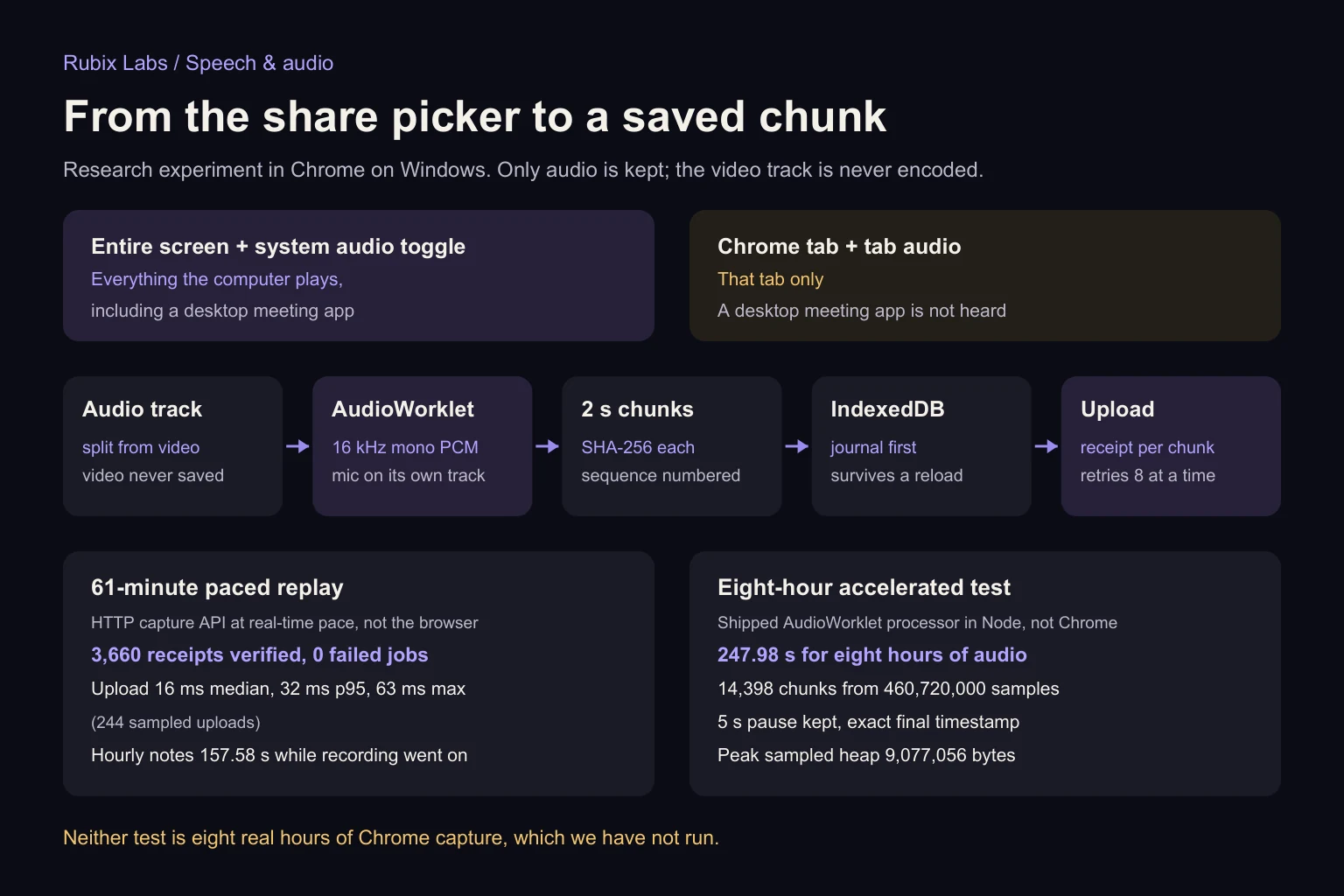
Two choices in the picker produce audio. Entire screen with the system audio toggle on captures everything the computer plays, a desktop meeting app included. A Chrome tab with tab audio on captures that tab and nothing else. Chrome's own documentation shows tab audio offered in the tab pane and system audio alongside screens. If the meeting runs in a desktop app and someone shares a tab, the recording won't include the other side of the call.
We also asked Chrome to keep playing the shared audio locally, so people still hear the call, to leave the recorder's own tab out of the list and to hide the button that switches tabs mid-share.
Platform support keeps moving. Google's December 2025 Workspace announcement for sharing device audio in Meet lists macOS 14.2 or newer or Windows 11 or newer, with Chrome 142 or newer. Meet's help page adds that Chrome on a Mac needs the Screen & System Audio Recording permission. Those are Meet's stated requirements, not results of ours: we captured system audio in Chrome on Windows only, and Mac capture is untested.
Keep the microphone on its own track
The microphone is a separate getUserMedia request with echo cancellation and noise suppression on and automatic gain control off. Both sources feed one AudioContext opened at 16 kHz. If a device can't open at that rate, the recorder refuses to start rather than record at a rate the speech model doesn't expect. Our Whisper write-up shows what that mistake looks like.
Two tracks cost some disk space. In return you can tell the remote side from the room, label speakers per source and spot the call leaking from a speaker into the microphone. In one test with a speaker next to the microphone, all 11 microphone utterances were speaker playback; our speakerphone echo article covers how we handled them.
Write to IndexedDB first, upload second
An AudioWorklet processor turns the live audio into 16-bit PCM and hands over a chunk every two seconds. Each chunk gets a SHA-256 hash and goes into an IndexedDB journal, in the same transaction that updates the recording's expected sequence numbers. Only then does it upload. The local server writes it atomically and records a receipt, and the browser deletes its copy once the upload succeeds. Uploads drain eight chunks at a time, so memory stays bounded.
We tested why that matters by stopping the backend during a 57.384-second microphone recording. Chrome kept recording, and 23 chunks were waiting when we pressed Stop. After the restart they uploaded by themselves: 29 consecutive chunks, no gaps in the timestamps and the full passage transcribed.
There are limits. Clearing the site's data wipes chunks that haven't uploaded. If Chrome or the computer crashes, the last partial buffer can be lost. The page holds a screen wake lock while recording, but that won't keep a closed laptop recording.
How long recordings held up
Neither long test is eight real hours of Chrome capture. Each one checks a single layer.
The first replayed 61 minutes of audio through the same HTTP capture API at real-time pace. The system channel repeated a Windows-voice sentence every 30 seconds and the microphone channel was silence. All 3,660 chunk receipts verified, 1,830 per source; both sources were processed through the full 3,660,000 ms, and no job failed. Upload latency was 16 ms at the median, 32 ms at p95 and 63 ms at worst, across 244 sampled uploads. The hourly notes took 157.58 seconds while recording carried on into the next hour, and the whole-session notes took 136.95 seconds.
The second pushed eight hours of audio through the shipped AudioWorklet processor in a Node test harness, accelerated, in 247.98 seconds. It produced 14,398 sequenced chunks from 460,720,000 samples, kept an intentional five-second pause, ended on the exact eight-hour timestamp and peaked at 9,077,056 bytes of sampled JavaScript heap. That tests the processor's logic, not Chrome's scheduling, IndexedDB or audio drivers.
In real Chrome on Windows, a 70.792-second capture of the entire screen with system audio, plus the microphone, saved 28 consecutive chunks per source and kept a pause from 46.944 to 63.368 seconds as silence.
| Test | What it covered | Result |
|---|---|---|
| 61-minute paced replay | HTTP capture API, storage, transcription and hourly notes | 3,660 receipts, 0 failed jobs; upload 16 ms median, 32 ms p95 |
| Eight-hour accelerated run | AudioWorklet processor logic, in Node | 247.98 s, 14,398 chunks, peak sampled heap 9,077,056 bytes |
| Backend stopped mid-recording | Real Chrome microphone capture, 57.384 s | 23 chunks queued and uploaded after restart, no gaps |
| Screen plus microphone | Real Chrome capture, 70.792 s | 28 consecutive chunks per source, pause kept as silence |
Before you build a browser recorder
The browser is quick to ship and needs no install. The trade is that the person recording has to choose the right picker option and toggle every time, and a Mac adds an operating-system permission on top. Test those steps on the machines your users have before you design anything else around them.
Rubix can prototype the capture path for a meeting or call tool and run these checks on your hardware. Our product engineering service and pricing page cover that kind of work, and our local transcription write-up shows what can sit behind the recorder.