Document engineering
PDF text extraction vs OCR: why you only got the footer
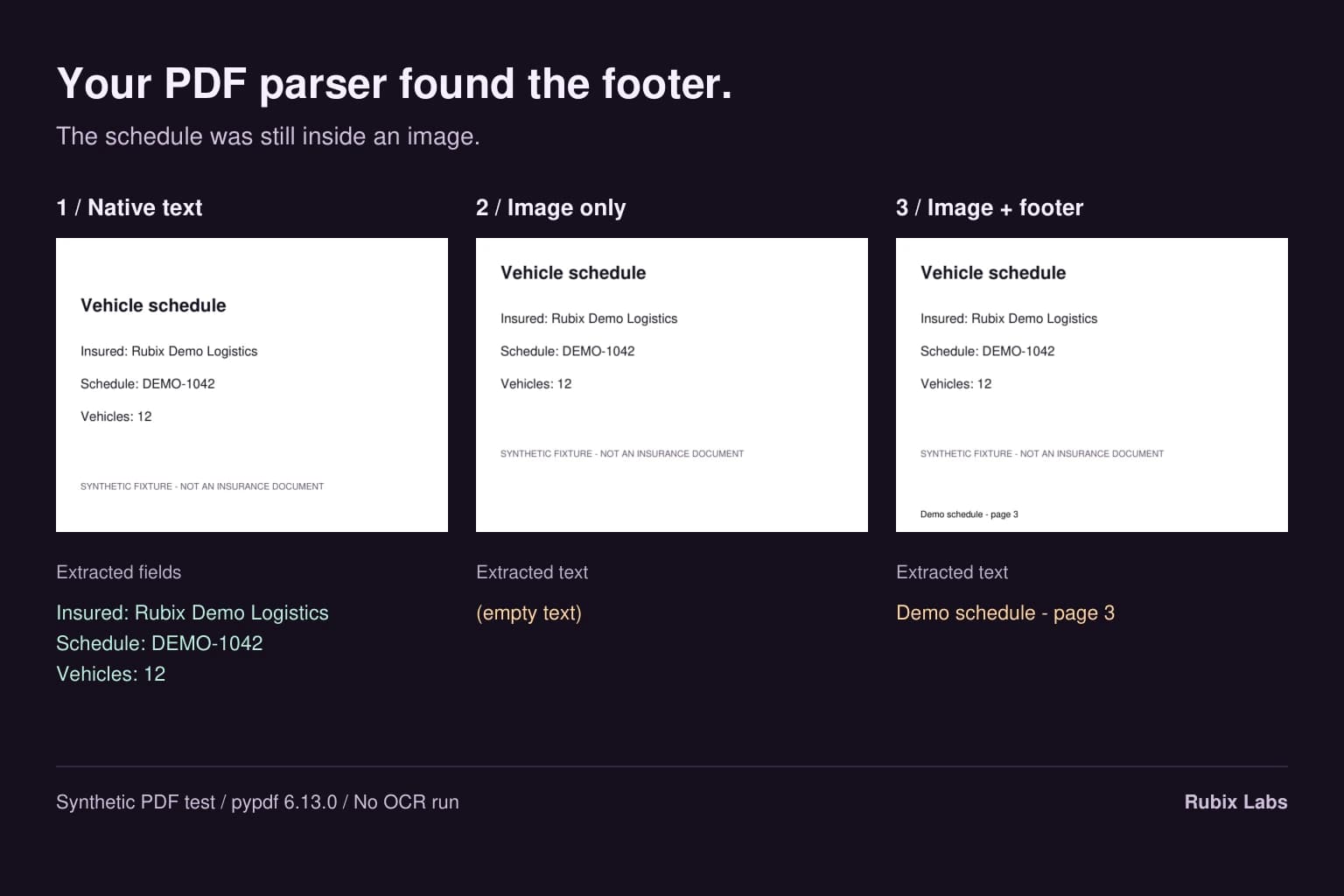
You open a PDF and can read the insured name, schedule number and vehicle count. Your parser hands back a page number. That's an awkward start for an insurance document workflow. We built a small PDF to reproduce this: three pages with the same visible fields, stored differently. One returned the fields, one returned nothing, and one returned only its footer.
The page you see and the text you can extract
PDF text extraction reads text stored in the file. OCR recognizes characters in an image. A PDF can hold either, or both. The file extension doesn't tell you which route will recover the schedule you can see on screen.
pypdf can extract stored text, including a text layer an earlier OCR tool created. It doesn't read letters from images or tell you whether that earlier OCR result was correct. Its documentation also describes why table layout and reading order can be awkward: a visually tidy page doesn't necessarily contain tidy rows of data.
What came back from our three pages
We made a fictional vehicle schedule for Rubix Demo Logistics: schedule DEMO-1042, with 12 vehicles. Page one contained ordinary PDF text. Page two contained a rendered image of that schedule. Page three contained the same image plus a separate PDF text footer reading 'Demo schedule - page 3'. All the names and values are dummy data.
The local check used pypdf 6.13.0 to call extract_text on each page. ReportLab 4.5.1 created the PDF, and PyMuPDF 1.27.2.3 rendered the image. We checked the returned strings against the fields we put in.
| Page | Actual extraction result | What that establishes |
|---|---|---|
| 1: native text | All three fields, plus the heading and synthetic-fixture notice | The known fields were available as text in this fixture. |
| 2: image only | Empty string | The text extractor did not recover the image's contents. |
| 3: image with native footer | Demo schedule - page 3 | Nonempty output can still omit every field you need. |
How we'd route the pages in an intake tool
We'd keep a separate result for every page: extraction method, returned text and the reason for further processing. An exported first page shouldn't decide the route for scanned attachments later in the file. Keep the original page available so an operator can compare it with the result.
For a known schedule layout, we'd check whether the extracted text covers the expected body regions and whether the required labels and values are usable. A page with a large image and text only near its bottom deserves another look. Image size and text position are clues, though. A logo isn't a scanned schedule, and unusual layouts will need review.
If the relevant content is inside an image, the OCR route needs that image or a rendered page. Tesseract accepts image formats such as PNG and TIFF; it doesn't accept a PDF directly. We'd record which route produced each result so someone can inspect a bad field later.
For a mixed page, we'd choose a deliberate policy: OCR the necessary image regions, or render and OCR the whole page. Then check for duplicate text and reading-order problems when combining results. We'd test that policy on representative samples before letting it feed the field parser. The local experiment above doesn't choose between those implementations.
After extraction, where does 12 go?
Once the text is available, the next job is to associate 12 with the vehicle-count field and this schedule. A table with several numbers still needs its rows and columns interpreted. Keep page references, the raw extracted value and the normalized field together. A reviewer should be able to check why the application proposed that value.
An unreadable or password-protected file also needs its own outcome. We'd stop that intake attempt with a useful explanation, within limits on file size, page count and processing time. Silently returning empty fields would make a file-processing failure look like missing customer information.
Rubix's Document OCR case study covers driver-license extraction and review. Our COI walkthrough follows extracted fields into rules and resubmissions. This PDF test sits earlier in that pipeline: making sure the next stage receives the relevant page content at all. Recovering a number doesn't establish that a policy is current or a COI meets a requirement.
Talk to Rubix about the PDFs your current tool misses and what your team does to rescue them. We can help scope the intake and review flow around that work. Redacted samples are useful once we've agreed a private way to share them; the first conversation can start with the fields you need and the system they need to reach.